MCP Filesystem Server Setup: How I Ran It on My Laptop
Published 7 min read

MCP filesystem server setup takes Node.js, one command and one folder. You start the official server with the path of a test folder. Then an AI app can list, read and edit files inside that folder only. I ran it on a Windows 10 laptop: the first start took 24 seconds because npx had to download the package.
Key takeaways
You need Node.js and a test folder. I used Node.js v24.16.0 on Windows 10.
One command starts the server: npx, the package name and your folder path.
The server told me it has 16 tools. It refused to read a file outside my folder.
Connecting it to Claude Desktop means editing one config file. I did not run that part, so those steps come from the official guide.
The server can change files, so share a folder you can afford to change.
What do you need before you start the MCP filesystem server?
You need three things: Node.js, a terminal and a folder you are happy to share. Claude Desktop is only needed for the last part of this guide. If you are new to the idea, read what Model Context Protocol is first. This post is only about the setup.
What | Why | How I checked |
|---|---|---|
Node.js | The server runs on it | node --version printed v24.16.0 |
A terminal | You type the start command there | I used one on Windows 10 |
A test folder | The server may only use this folder | I made one with two text files |
Claude Desktop (optional) | Only for the last part | I did not run this part |
How did I set up the MCP filesystem server step by step?
I did five things. Each one gave me a result I could check.
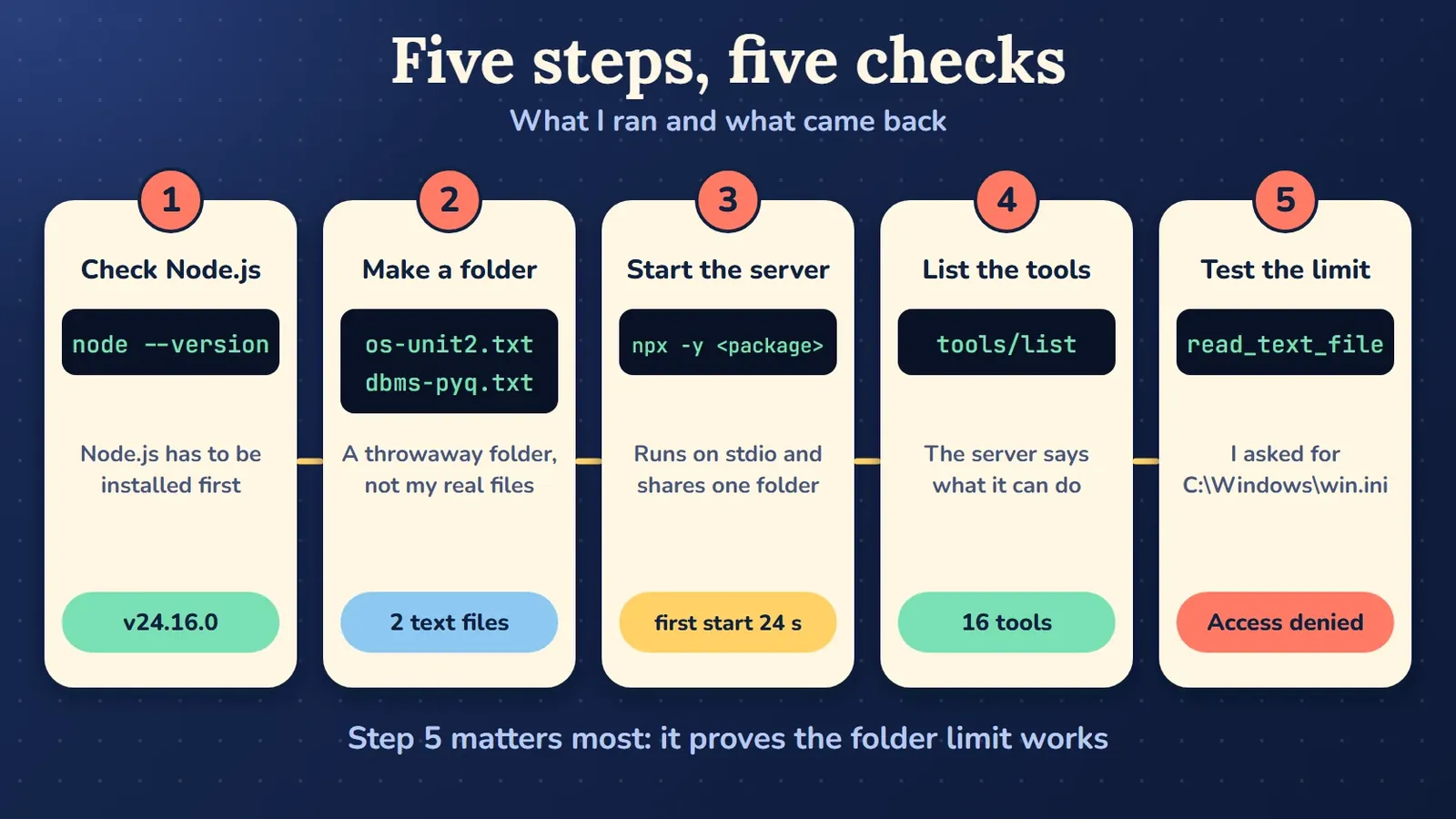
Step 1: I checked that Node.js was installed
First I ran this in a terminal. It printed v24.16.0, so Node.js was ready. If your terminal says the command is not found, install Node.js first.
node --versionStep 2: I made a throwaway folder
Next I made a new folder only for this test. I put two text files in it: os-unit2.txt with the words "Operating Systems unit 2 notes" and dbms-pyq.txt with "DBMS pyq 2024". Why a throwaway folder? The server can edit files, so I did not want to risk my real study notes.
Step 3: I started the server
Then I ran the package from the official guide and pointed it at my test folder. Put your own folder path in place of mine.
npx -y @modelcontextprotocol/server-filesystem "C:\path\to\your\test-folder"The first start took 24 seconds, because npx had to download the package. After that the server printed that it was running on stdio. It also listed my test folder as the only allowed one.
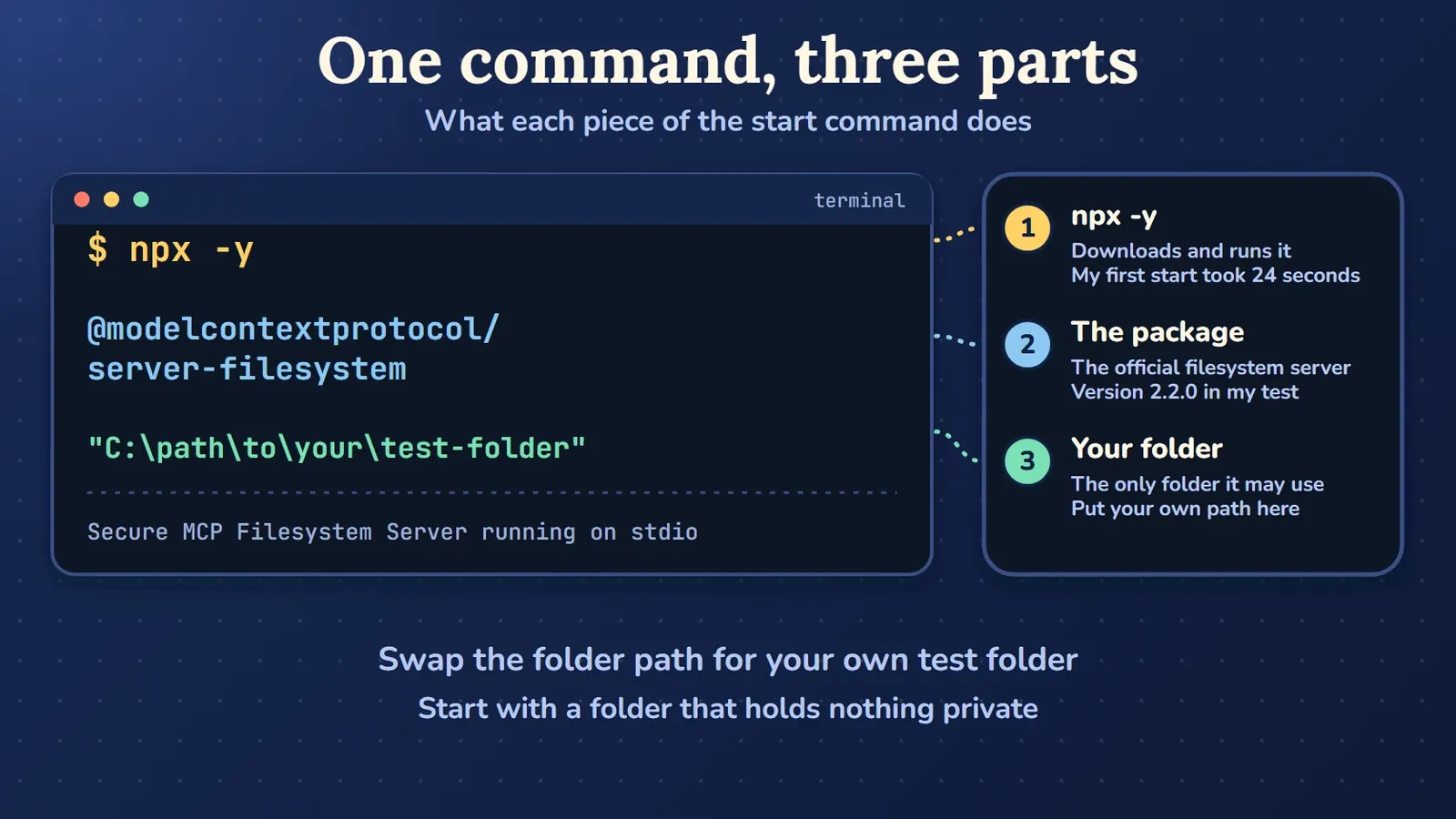
Only the folder path at the end changes from one setup to the next.
Step 4: I asked the server for its tools
I wrote a small script that sends MCP messages to the server over stdio. You do not need one, because an AI app sends these messages for you. The server introduced itself as secure-filesystem-server, version 2.2.0. When I asked for its tool list, it sent back 16 tools.
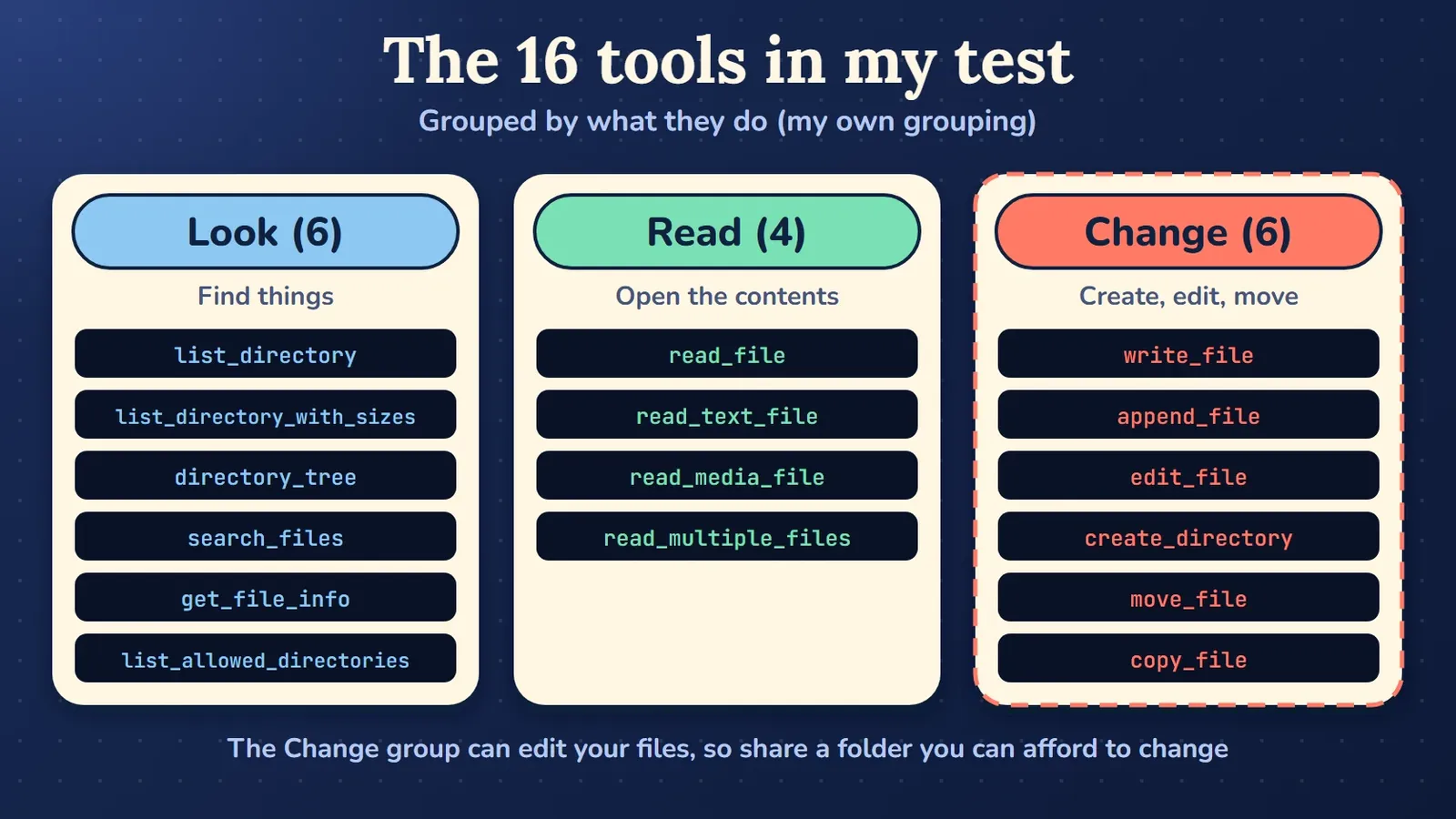
I sorted the 16 names into three groups myself: look, read and change. Six of them can change your files. That matters in the safety section below.
Step 5: I tested the folder limit
This was the part I cared about most, because the whole point of sharing one folder is that the server must stay inside it. First I called list_directory on my test folder, which showed both files. Then I called read_text_file on os-unit2.txt and got back "Operating Systems unit 2 notes". Last I asked it to read C:\Windows\win.ini, a file outside my folder.
What I asked | Tool | What came back |
|---|---|---|
Show my test folder | list_directory | dbms-pyq.txt and os-unit2.txt |
Read one file inside the folder | read_text_file | "Operating Systems unit 2 notes" |
Read C:\Windows\win.ini | read_text_file | Access denied, path outside allowed directories |
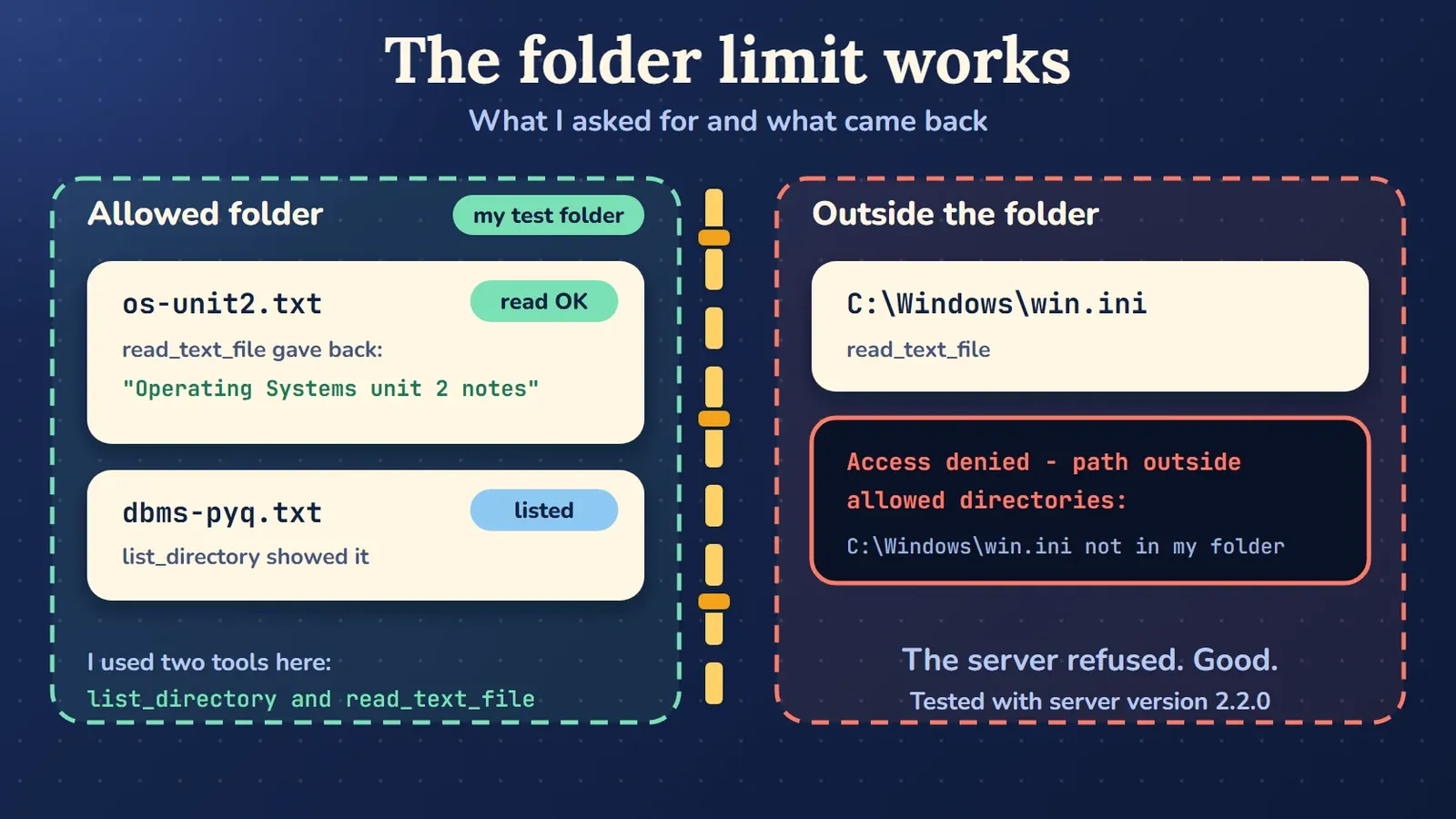
The server refused the last request. So the folder list you give it really is the limit, at least for this server version.
How do I connect the server to Claude Desktop?
You add the server to one config file, then restart the app. I did not run any of this myself, because I left my real Claude Desktop settings alone. The approval prompt, the Developer tab and the restart come only from the official guide.
I did not test this part inside Claude Desktop. Treat the steps below as the docs version, not as my own result.
Install Claude Desktop and Node.js.
In Claude Desktop, open the Claude menu, then Settings, then the Developer tab and click Edit Config. On Windows the file is at
%APPDATA%\Claude\claude_desktop_config.json.Put the server in that file. Swap
usernamefor your own Windows username and change the two folders to the ones you want to share.Quit Claude Desktop completely, open it again and try a request like "What files are in my Downloads folder?" The docs say Claude asks for your approval before it does anything on your computer.
{
  "mcpServers": {
    "filesystem": {
      "command": "npx",
      "args": [
        "-y",
        "@modelcontextprotocol/server-filesystem",
        "C:\\Users\\username\\Desktop",
        "C:\\Users\\username\\Downloads"
      ]
    }
  }
}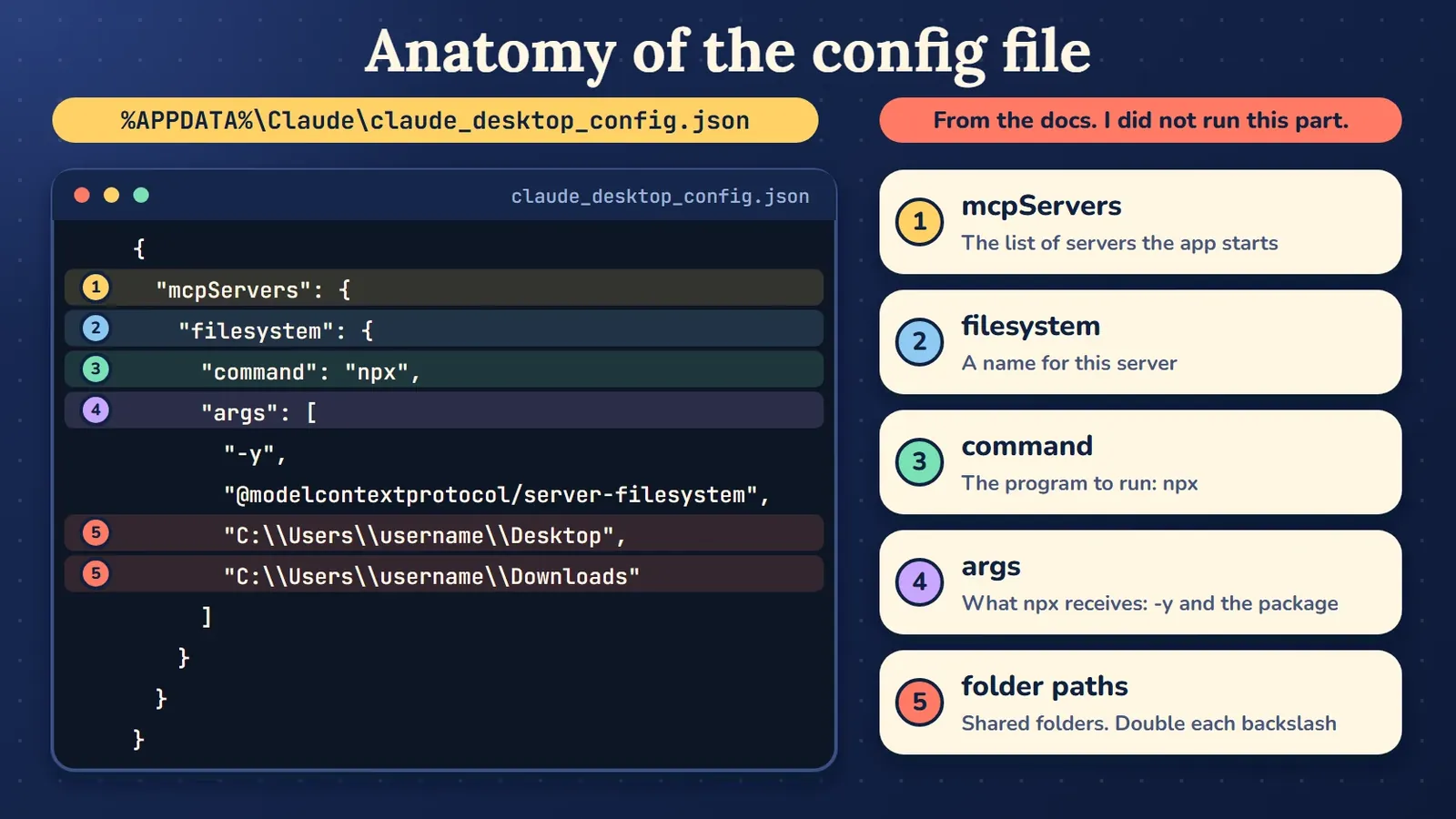
Write every backslash in a Windows path twice inside the file, exactly as the docs example does.
What would I check if the setup does not work?
I would start at the top of this table and go down. The first row is from my own test. I did not hit the other rows, so they are what I would check first, based on the docs.
What you see | Likely reason | What I would do |
|---|---|---|
Nothing happens for half a minute | npx is downloading the package | Wait. My first start took 24 seconds |
The terminal says a command is not found | Node.js is missing | Install Node.js, then run node --version |
Access denied, path outside allowed directories | The file is not inside a folder you passed | Add that folder to the list in the command |
Claude Desktop does not show the server | The app was not fully closed, or the file has a typo | Quit it completely, check the commas and the doubled backslashes |
Is it safe to share a folder with an MCP server?
It is safe enough if you stay careful. In my test the server refused a file outside the folder I gave it. Still, six of the 16 tools can change files. The docs say a local server runs with the permissions of your own user account.
The docs warn that a local server runs with your user account permissions, so it can do anything you can do by hand. Share only folders you are comfortable with an AI reading and changing. Never share a folder with passwords or private documents.
Frequently asked questions
Do I need to install the package first?
No. I did not install anything by hand. The npx command downloaded the package on the first start. That is why the first start took 24 seconds.
Can I share more than one folder?
Yes. The docs example for Claude Desktop lists two folders, Desktop and Downloads. Each folder is one more path in the list.
Where is the config file on Windows?
The docs give the path as %APPDATA%\Claude\claude_desktop_config.json. You can also reach it from Claude Desktop through Settings, the Developer tab and Edit Config.
Does the server only work with Claude Desktop?
No. I ran it with my own small script and no AI app at all. The docs list other apps that support MCP, such as Visual Studio Code and Cursor. I did not try them.
What I would do next
The part I have not tried is the Claude Desktop approval prompt, so that is my next test. If you want to understand why the server behaves this way, read what Model Context Protocol is. For more guides like this one, browse the Tool Setup posts.
Sources
Checked on 2026-11-10
Comments
No comments yet. Start the discussion.